


EZCAD Software Download: A Practical Guide for Laser Marking
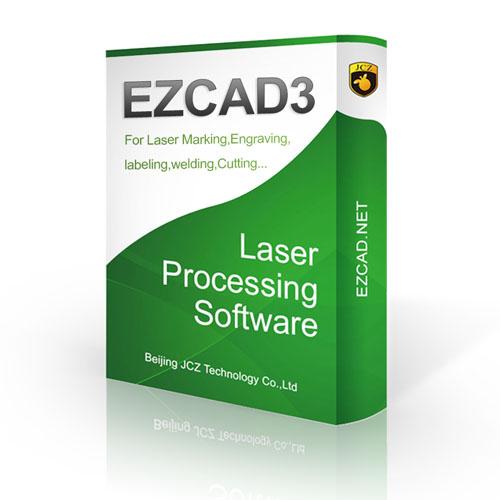
EZCAD is widely used with fiber laser marking machines to create precise text, logos, serial numbers, barcodes, and graphic designs on different materials. For manufacturers, workshop owners, and engraving professionals, finding the correct ezcad software download is an important step toward setting up an efficient laser marking workflow.
EZCAD software allows users to prepare marking designs, adjust engraving parameters, and control compatible laser marking systems. Before downloading the software, it is essential to confirm machine compatibility and identify the correct version for your hardware.
What Is EZCAD Software?
EZCAD is a laser marking control program commonly associated with compatible fiber laser marking systems. It enables operators to import designs, arrange text and graphics, configure marking settings, and send jobs to supported laser equipment.
Depending on the version and connected hardware, the software may support common graphic formats, vector designs, serial numbering, and barcode marking. These functions make it suitable for industrial identification, product customization, and metal engraving applications.
Businesses use EZCAD for marking stainless steel, aluminum, brass, and other compatible materials. Actual marking results depend on the laser source, material properties, machine configuration, and selected parameters.
How to Find the Correct EZCAD Software Download
When searching for an ezcad software download, always begin with your laser machine manufacturer or authorized supplier. The correct installation package depends on the controller board, software generation, and operating system compatibility.
Follow these steps before installing the program:
-
Identify your controller: Check the controller model installed in your laser marking machine.
-
Confirm the software version: Determine whether your equipment requires EZCAD2, EZCAD3, or another compatible control solution.
-
Contact your supplier: Request the appropriate installation package and any necessary drivers.
-
Check system requirements: Verify operating system compatibility and any hardware or driver requirements.
-
Keep a backup: Save your existing configuration files and marking parameters before changing installations.
Avoid downloading unknown installation files from unofficial websites. Unverified packages may contain unwanted programs, outdated drivers, or files that do not support your equipment.
How to Install and Set Up EZCAD
After obtaining the correct installation package, follow the instructions supplied with your laser marking machine. Some versions require driver installation or specific configuration files before they can communicate with the controller.
First, extract the installation files if they are provided in a compressed archive. Follow the supplier's instructions to install or launch the software. Connect the marking machine according to the manufacturer's guidance, and confirm that the controller is recognized.
Next, check the software configuration and verify that the selected settings match your machine. Incorrect parameters can cause communication errors or inconsistent marking results.
Before beginning production, test the setup using a suitable sample material. Start with conservative marking settings and adjust speed, power, frequency, and other available parameters according to the material and machine specifications.
Always follow the equipment manufacturer's laser safety procedures. Use the required protective equipment and operate enclosed or open-beam systems only with the appropriate safeguards.
Applications of EZCAD in Laser Marking
EZCAD-compatible systems are used in many industries where permanent product identification is required.
Metal engraving: Manufacturers can mark names, logos, model numbers, and product specifications on metal components.
Industrial traceability: Serial numbers, QR codes, and other identification marks help businesses organize products and track production batches.
Customized products: Workshops can create personalized designs on compatible metal accessories, promotional items, and manufactured goods.
Electronic components: Suitable laser marking systems can apply small identification marks to selected components when the material and application permit.
Automotive and machinery parts: Permanent markings can help identify components, production dates, and reference numbers.
The final result depends on selecting the correct laser source, lens, marking field, and processing parameters for the application.
Common Problems During Installation
Users may encounter several issues when installing or launching EZCAD. A program that opens but cannot communicate with the machine may indicate an incompatible driver, incorrect controller configuration, a connection problem, or a mismatch between the software version and hardware.
If the program fails to launch, check the operating system requirements and confirm that the installation files are complete. If settings appear different after reinstalling, restore the correct configuration files provided for your equipment.
When troubleshooting, record any error messages and consult the machine supplier before replacing drivers or changing controller settings. This approach helps prevent unnecessary downtime and protects existing machine configurations.
Choosing the Right Laser Marking Software
The best software depends on your production requirements and laser marking equipment. Before selecting an installation package, consider the controller, laser source, required design functions, supported file formats, and operating system.
If you are purchasing a new fiber laser marking machine, ask the supplier which software is included, whether installation support is available, and how software updates are handled. Confirm whether licensing, drivers, and configuration files are supplied with the machine.
Taking these steps helps ensure that the software works correctly with your equipment and supports your intended marking applications.
Final Thoughts
Finding the right ezcad software download starts with understanding your laser marking machine's hardware and controller requirements. Obtaining the correct installation package from a trusted manufacturer or authorized supplier can simplify setup, reduce compatibility problems, and help maintain reliable marking performance.
Before installation, verify the software version, back up existing settings, and follow the manufacturer's instructions. With a properly configured system, EZCAD-compatible laser marking equipment can support a wide range of industrial engraving and product identification tasks.

 Arabic
 French
 Spanish
 Portuguese
 Deutsch
 Turkish
 Dutch
Dutch
 Italiano
 Russian
 Romaian
 Portuguese (Brazil)
 Greek
Greek
 ไทย
ไทย