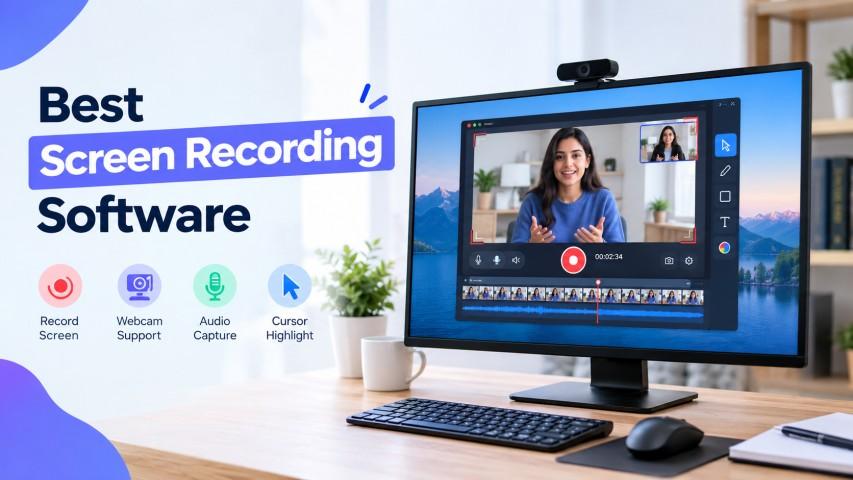
Best Screen Recording Software Without Watermark: Complete Guide
Finding the right screen recording software can make it easier to create tutorials, presentations, training videos, gameplay recordings, and business demonstrations. The best tool depends on your operating system, recording requirements, video quality, audio needs, and whether you need editing or sharing features.
There are many screen recording programs available, including free, paid, open-source, and built-in Windows options. This guide covers popular choices and explains what to look for when selecting a screen recorder.
What Is Screen Recording Software?
Screen recording software captures activity on your computer display and saves it as a video. Depending on the program, you can record your entire screen, a specific window, or only a selected area.
You can use a screen recorder for:
- Tutorials and how-to videos
- Online classes
- Product demonstrations
- Software training
- Presentations
- Gameplay
- Customer support
- Team communication
Some tools can also record your webcam, microphone, and system audio.
What Should You Look for in a Screen Recorder?
Before choosing a screen recorder, consider the following features:
1. Video Quality
Look for support for the resolution and frame rate you need. Higher-quality settings are useful for tutorials, demonstrations, and professional videos.
2. Audio Recording
A good recorder should allow you to capture microphone audio. Some tools can also record system audio at the same time.
3. Recording Length
Free tools may have limits on recording time. Check the current plan before starting a long recording.
4. Watermark
If you plan to publish your videos, look for a screen recorder without watermark so your final video does not contain an unwanted logo.
5. Webcam Support
Webcam recording is useful for online courses, presentations, tutorials, and video messages.
6. Editing and Sharing
Some programs include editing features or instant sharing links, while others focus mainly on recording.
Best Screen Recording Programs
1. OBS Studio
OBS Studio is a free, open-source screen recording software available for Windows, macOS, and Linux.
The OBS screen recorder uses scenes and sources, allowing you to combine your display, application windows, webcam, and other inputs. It also supports live streaming.
Useful for:
- YouTube videos
- Gaming
- Tutorials
- Online courses
- Live streaming
- Professional screen recording
OBS Studio does not add a watermark to recordings.
2. ScreenRec
ScreenRec is designed for quick screen recording and sharing. It can capture the screen, webcam, microphone, and system audio.
Its workflow focuses on recording and quickly sharing the resulting video, making it useful for business communication and demonstrations.
3. ShareX
ShareX is a free, open-source Windows application that provides screenshot and screen-recording capabilities.
It can be useful for users who want lightweight screen capture and recording software with different capture options.
4. Windows Built-In Tools
Windows already provides screen-recording options, including the Snipping Tool and Xbox Game Bar.
This makes them useful when you need a Windows screen recording tool without installing additional software.
5. Loom
Loom focuses on recording and quickly sharing videos. It is commonly used for team communication, tutorials, customer explanations, and business updates.
Its workflow allows users to record a video and share it through a link rather than manually uploading the file elsewhere.
6. Screen Studio
Screen Studio is designed for polished screen recordings on macOS. It includes features such as automatic zooms, backgrounds, device frames, and high-resolution exports.
Screen Recorder Without Watermark
A screen recorder without watermark can be useful when you want a clean-looking video for YouTube, training, presentations, or business use.
OBS Studio, ScreenRec, ShareX, Loom, Screen Studio, and several Windows recording options currently provide watermark-free recordings, although their other features and plan limits differ.
Always check the current terms of a free plan before recording important content.
OBS Screen Recorder
The OBS screen recorder is particularly flexible because it allows you to configure different scenes and recording sources.
For example, you can create one scene showing only your desktop and another showing your desktop with a webcam in the corner.
OBS also lets you adjust recording resolution, frame rate, audio sources, and output settings.
Windows Screen Recording Tool
If you use Windows, you may already have everything needed for basic screen recording.
The Snipping Tool provides a recording feature, while Xbox Game Bar can record supported application windows. Windows also provides Clipchamp for editing and recording workflows.
This can be a convenient option when you only need occasional recordings.
Screen Capture for Windows
There are several choices for screen capture for Windows, including:
- Snipping Tool
- Xbox Game Bar
- OBS Studio
- ShareX
- ScreenRec
- Loom
Choose a tool based on whether you need simple capture, advanced recording controls, audio recording, editing, or sharing.
How to Choose the Right Screen Recorder
Your choice depends on what you want to accomplish.
For advanced recording: OBS Studio provides detailed control over scenes, sources, audio, and output.
For quick sharing: ScreenRec and Loom focus on recording and sharing videos.
For lightweight Windows capture: ShareX provides a range of capture features.
For simple Windows recording: The built-in Windows tools can be enough.
For polished Mac recordings: Screen Studio provides additional presentation-focused features.
Screen Recording for Tutorials
A screen recorder is useful when creating step-by-step tutorials.
For example, you can:
- Open the application or website.
- Start recording.
- Explain each step using your microphone.
- Demonstrate the process.
- Stop and save the recording.
- Edit or share the finished video.
This is useful for software tutorials, educational videos, and employee training.
Screen Recording for Business
Businesses can use screen recording programs for:
- Employee training
- Product demonstrations
- Customer support
- Sales presentations
- Internal communication
- Software tutorials
- Client updates
Screen recordings can make it easier to explain a process without scheduling a live meeting.
Frequently Asked Questions
What is a screen recorder?
A screen recorder is software that captures activity on your computer screen and saves it as a video.
Is there a screen recorder without watermark?
Yes. Several programs provide watermark-free recordings, including OBS Studio, ShareX, ScreenRec, Loom, and some built-in Windows options.
Is OBS Studio free?
Yes. OBS Studio is free and open source and does not add an OBS watermark to recordings.
Can I record my Windows screen without downloading software?
Yes. Windows provides built-in recording options such as the Snipping Tool and Xbox Game Bar.
Can a screen recorder capture audio?
Yes. Many screen recording tools can capture microphone audio, system audio, or both, depending on the software and settings.
What is the best screen recorder for Windows?
Windows users can choose from built-in tools, OBS Studio, ShareX, ScreenRec, and other programs. The right option depends on the features you need.
Conclusion
The right screen recording software depends on your specific recording needs. Beginners may prefer a built-in Windows screen recording tool, while advanced users may prefer OBS Studio for its detailed controls.
Whether you need screen recording programs, screen capture and recording software, a screen recorder, a screen recorder without watermark, an OBS screen recorder, or screen capture for Windows, compare video quality, audio support, recording limits, watermarks, editing options, and platform compatibility before choosing a tool.




 English
 French
 Spanish
 Portuguese
 Deutsch
 Turkish
 Dutch
Dutch
 Italiano
 Russian
 Romaian
 Portuguese (Brazil)
 Greek
Greek
 ไทย
ไทย