


How to Fix Common Problems With Computer USB Accessories
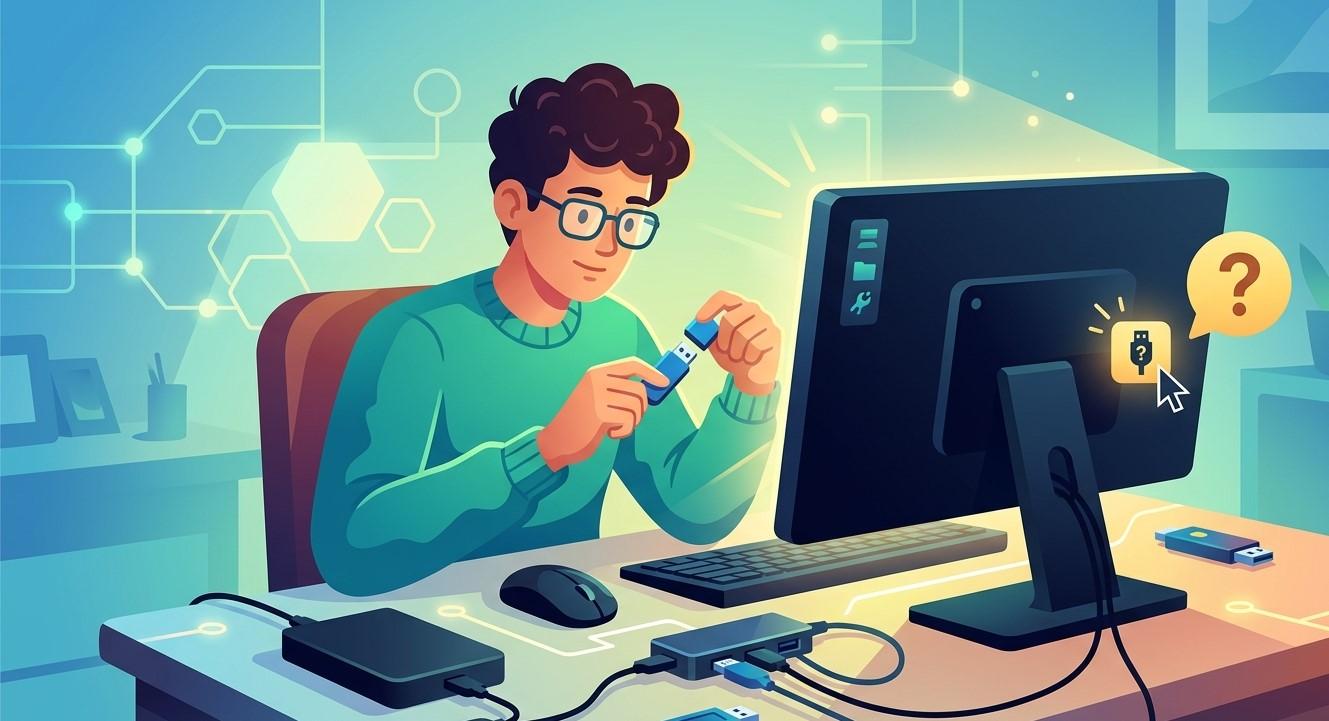
USB accessories have become an essential part of everyday computing. From keyboards and mice to external hard drives, printers, webcams, USB hubs, and flash drives, these devices make computers more convenient and productive. However, USB accessories can sometimes stop working, disconnect unexpectedly, transfer data slowly, or fail to appear on the computer.
The good news is that many USB problems are caused by simple issues such as loose connections, damaged cables, outdated drivers, insufficient power, or incorrect settings. Learning how to troubleshoot these problems can help you restore functionality without immediately replacing your equipment. If USB issues continue or affect multiple devices, professional computer repair Albany, laptop repair Albany, and computer repair Albany NY services can help identify whether the problem is related to the accessory or the computer itself.
Why Do USB Accessories Stop Working?
USB accessories can experience problems for several reasons. A device may stop responding because of a faulty connection, damaged cable, incompatible drivers, a defective USB port, or insufficient power.
Common symptoms include:
- USB device not being detected
- Device repeatedly disconnecting
- Slow data transfer
- Keyboard or mouse not responding
- External drive disappearing
- USB accessory working intermittently
- Error messages when connecting a device
- Device working on one computer but not another
The first step is determining whether the problem involves the USB accessory, cable, port, or computer.
1. Check the USB Connection
Start with the simplest possible cause: the connection.
Disconnect the accessory and reconnect it firmly. Make sure the connector is fully inserted into the USB port.
If the device uses a removable cable, check both ends.
Look for:
- Loose connectors
- Bent pins
- Damaged cable insulation
- Dirt or debris
- Signs of physical damage
A loose connection can cause intermittent behavior that makes the device appear defective.
2. Try a Different USB Port
A single USB port can fail while the others continue working normally.
If your accessory isn't detected, connect it to another compatible port.
For desktop computers, try both front and rear USB ports if available. For laptops, test another port on the opposite side when possible.
If the device works in another port, the original port may have a hardware or connection problem.
Avoid repeatedly forcing a connector into a damaged port because this can cause additional physical damage.
3. Test the Accessory on Another Computer
Testing the USB accessory on another computer is one of the easiest ways to identify where the problem originates.
If the device works normally on another computer, the accessory is probably functional and the original computer may have a software, driver, or port issue.
If the device fails on multiple computers, the accessory, cable, or power supply may be defective.
This simple test can prevent unnecessary purchases and help narrow down the problem.
4. Restart the Computer
Temporary operating system or USB-controller problems can sometimes prevent accessories from working correctly.
Disconnect the affected device, restart the computer, and reconnect it after the operating system has fully loaded.
A restart can reset:
- USB controllers
- Device drivers
- Background services
- Temporary system errors
If the accessory works after every restart but later stops again, investigate drivers, power management, or software conflicts.
5. Check Device Drivers
Many USB accessories rely on operating system drivers to communicate correctly with the computer.
Outdated, corrupted, or incompatible drivers can cause:
- Device detection problems
- Random disconnections
- Reduced performance
- Error messages
- Complete loss of functionality
Check your operating system's device management tools for warning indicators.
If a driver appears damaged, update or reinstall it using reliable sources. For specialized devices, use the manufacturer's official support resources whenever possible.
6. Check USB Power Requirements
Some USB accessories require more power than others.
Simple devices such as keyboards and mice generally require relatively little power, while external hard drives, certain webcams, and other accessories may require more.
If a device repeatedly disconnects, especially when connected through a USB hub, insufficient power may be involved.
Try connecting the device directly to the computer instead of using a hub.
For high-power accessories, a powered USB hub may provide more reliable operation if it is compatible with the equipment.
7. Inspect USB Hubs
USB hubs are convenient because they allow multiple devices to share a single port. However, a faulty or overloaded hub can create connection problems.
Symptoms may include:
- Several devices disconnecting together
- Slow transfers
- Devices not being recognized
- Intermittent connections
Disconnect the hub and connect the accessory directly to the computer.
If the device works normally without the hub, the hub or its power supply may be responsible.
8. Check External Storage Devices
USB flash drives and external hard drives can experience additional problems because they handle important data.
If an external drive isn't detected, check the cable and try another USB port.
If the drive repeatedly disconnects or produces unusual noises, avoid repeatedly reconnecting it if it contains important files.
Repeated connection attempts can sometimes make a failing storage device more difficult to recover.
Back up accessible data as soon as possible and consider professional data recovery if the information is critical.
9. Clean the USB Ports Carefully
Dust and debris can interfere with electrical contact between the USB connector and port.
Inspect the port for visible debris before attempting to clean it.
Avoid inserting sharp metal objects into the port because they can damage internal contacts.
If a port appears physically damaged or contaminated, professional cleaning or repair may be safer.
10. Check Power Management Settings
Some operating systems use power-management features to reduce energy consumption by temporarily disabling USB devices.
This can sometimes cause accessories to disconnect unexpectedly.
If USB devices repeatedly stop working after periods of inactivity or when the computer wakes from sleep, investigate USB power-management settings.
If you aren't sure which advanced setting should be changed, avoid making random modifications. Incorrect settings can create additional problems.
11. Look for Software Conflicts
Certain programs can interfere with USB devices.
This may happen with:
- Security software
- Device-management utilities
- Virtual machine software
- Hardware monitoring tools
- Specialized peripheral software
If the USB problem started after installing a particular application, consider whether the new software could be responsible.
Updating or temporarily removing unnecessary software may help identify the conflict.
When Should You Contact a Professional?
Basic troubleshooting can solve many USB problems, but professional assistance may be necessary when multiple devices fail or the issue continues.
Consider professional diagnosis if:
- Several USB ports stop working.
- USB devices repeatedly disconnect.
- Ports appear physically damaged.
- The computer experiences other hardware problems.
- External storage devices show signs of failure.
- Drivers repeatedly malfunction.
- The problem started after a hardware repair.
- USB problems occur alongside system crashes or freezes.
Professional computer repair Albany technicians can test USB ports, controllers, drivers, power delivery, and related hardware.
For laptop owners, laptop repair Albany specialists can inspect USB-C and USB-A ports, internal connections, motherboard components, and power-related issues.
If you're searching for computer repair Albany NY, professional diagnostics can help determine whether the problem is caused by the USB accessory, software, or computer hardware.
How to Prevent USB Problems
Good habits can reduce USB-related failures.
- Avoid forcing connectors into ports.
- Disconnect devices carefully.
- Use high-quality cables.
- Avoid overloading USB hubs.
- Keep ports reasonably clean.
- Safely eject external storage.
- Keep drivers and operating systems updated.
- Protect accessories from moisture and physical damage.
- Back up important data stored on external drives.
For portable accessories, storing them safely when not in use can also protect connectors and cables from unnecessary wear.
Conclusion
USB accessory problems can be caused by simple connection issues, damaged cables, faulty ports, outdated drivers, insufficient power, overloaded hubs, software conflicts, or failing hardware. Before replacing an accessory, test another USB port, reconnect the device, restart the computer, check drivers, and test the accessory on another computer.
If an external storage device is involved, be especially careful when important data is stored on it. Repeated disconnections or unusual behavior may indicate a developing hardware problem.
When basic troubleshooting doesn't solve the issue, professional computer repair Albany, laptop repair Albany, and computer repair Albany NY services can identify the underlying cause. Proper diagnosis can help determine whether you need a new accessory, cable, USB port repair, driver fix, or another hardware solution. With careful handling and regular maintenance, your USB devices can remain reliable and useful for years.

 English
 French
 Spanish
 Portuguese
 Deutsch
 Turkish
 Dutch
Dutch
 Italiano
 Russian
 Romaian
 Portuguese (Brazil)
 Greek
Greek
 ไทย
ไทย