
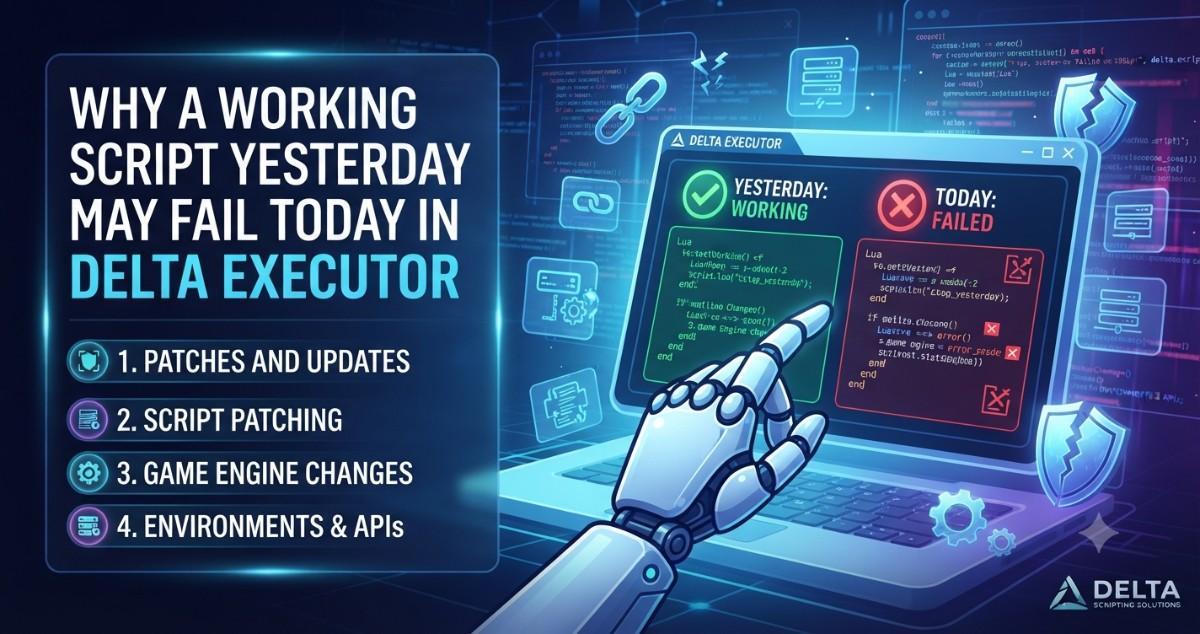

A code that worked fine yesterday may suddenly stop working today. Especially if you haven’t changed anything yourself, this can be confusing. But software environments change over time. Updates, compatibility issues, network problems and changes to the original code can all affect a script.
If you’re using a third party tool like Delta Executor, just know that it’s not going to be successful every day. Roblox updates the platform, developers update their experiences, and the software on your device can update as well. A script that depends on an older version of a game or application may stop working after one of these changes.
1. Roblox Updates Can Change How Scripts Behave
One common reason for script problems is a Roblox update. Platform updates may change how certain features work, fix bugs, or improve security. As a result, code that depended on an older behavior may no longer produce the same result.
For example, a script may refer to a feature that has been changed or removed. When that happens, the script may show an error or stop completing its task.
The best approach is to check official Roblox information and the documentation for supported development features. Do not assume that an old script will always work with a newer platform version.
2. Changes to the Game or Experience
Different developers create and update Roblox experiences. A game can be given a new interface, its objects can be changed or the way certain features work can be updated.
Changes might affect scripts that depend on certain names, objects or structures present in the game. Old code may behave differently after a minor update.
If a script stops working in one experience, but other scripts or applications are working fine, the experience itself may have changed. Check the official game update information when it is released.
3. Script Errors and Outdated Code
Not every failure comes from a platform update. Sometimes, the script itself contains an error or relies on outdated code.
Common examples include:
- A variable has been renamed or removed.
- A function no longer exists.
- A spelling mistake has been introduced.
- A required value is missing.
- The script expects information that is no longer available.
Read error messages carefully instead of repeatedly running the same code. If you are learning programming, test your own code in Roblox Studio and use supported Luau documentation to understand the problem.
4. Device and Application Changes
Changes to a device can also affect application behavior. An operating system update, low storage, limited memory, or background process may cause an application to become unstable.
Some users may search for a Delta iOS download when looking for an iPhone version. However, an iOS-related file name does not prove that an application is genuine, compatible, or safe. iOS and Android have different application formats and security requirements.
Check your device's official software updates, available storage, and compatibility information. Avoid unknown downloads or configuration profiles that promise to fix every problem.
5. Network Problems and Temporary Errors
Some apps and online experiences need a solid connection to the internet. Weak Wi-Fi, interruptions to mobile data, or temporary service problems can cause features to not load properly.
Open a trusted website to check your connection. If other services are slow as well, then it could be your network and not the script.
Major changes to your device? Wait and verify with reliable service information.
6. How to Identify the Real Cause
When a script that worked yesterday fails today, avoid changing several things at once. Follow a simple troubleshooting process:
- Write down the exact error message.
- Check whether Roblox or the experience has recently updated.
- Review the script for outdated references or coding mistakes.
- Check device storage, memory, and system updates.
- Test your own code in Roblox Studio.
This process can help separate coding problems from device or platform issues. Never disable security protections or share your Roblox password to make a third-party tool work.
Conclusion
Better to know what happened than to keep trying the same method. Use official information, supported development tools, and safe troubleshooting techniques. Learning Luau with Roblox Studio can also help you become familiar with errors and write more reliable code.


